FIRE TV SETUP · UPDATED SEPTEMBER 29, 2026
Firestick 4K Max IPTV Setup: Player, Playlist & Fixes
A Fire TV Stick is a streaming device, not a television subscription. This guide explains how to install a compatible media player, add a playlist from a service you are allowed to use, and troubleshoot common playback problems without relying on random APK sites.
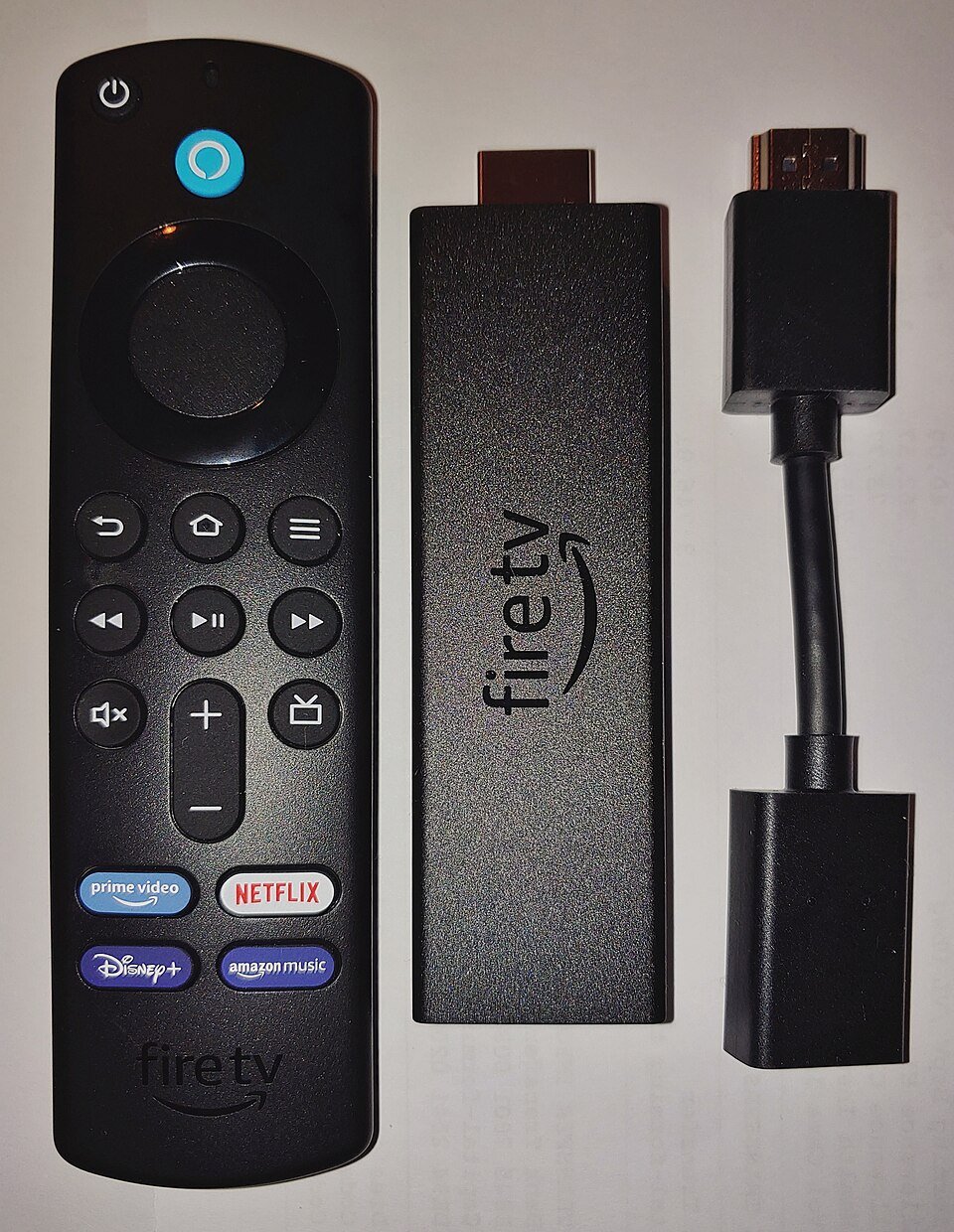
What you need
- A Fire TV Stick 4K Max connected to a TV and the internet.
- A media-player app compatible with your device, obtained from the Amazon Appstore or the developer's own current instructions.
- A valid playlist or login from a service you are legally authorized to use. The player itself generally does not include channels.
- Your Wi-Fi password; optionally a compatible Ethernet adapter if your model supports wired networking.
Step 1: Prepare your Fire TV Stick
- Open Settings → My Fire TV → About and check the device generation and software version.
- Install available system updates from the settings menu, then restart the device if prompted.
- Connect to your home Wi-Fi and check that other apps can stream normally. If the Fire TV is behind a television or several walls from the router, test closer to the router before installing anything.
- Make sure there is enough free storage for the app and its guide data. Remove apps you no longer use instead of installing system-cleaner APKs from unknown sites.
Step 2: Choose and install a compatible media player
On Android TV and Fire TV, TiviMate and other playlist players may be available or require a developer-approved installation method depending on device and region. Availability changes over time. Search the official Amazon app store first. If the app developer provides current sideloading steps, verify you are reading the real developer site, not an ad or lookalike download page.
Do not install a random APK just because a video or forum lists a downloader code. Avoid apps that promise paid channels for free, ask you to disable protections broadly, or request unrelated permissions. We do not provide playlist credentials or channel access.
Step 3: Add your own playlist or service login
- Open the player and choose its add-playlist or add-account option.
- Select the format your authorized service supplied, such as an M3U playlist or Xtream-style login, if the player supports it.
- Enter the exact server address and credentials given by the service. These details are private, so avoid screenshots, public forums, and untrusted playlist-upload websites.
- Let the player load its channel list and guide data. Large playlists can take time; leave the app open until its first sync finishes.
- Test a channel or stream you have permission to watch. If the player reports an authentication error, re-check the URL and ask the service for updated credentials rather than changing unrelated device settings.
Step 4: Troubleshoot Firestick IPTV buffering and playback
Buffering on every app
Test the Fire TV close to the router and compare another device on the same network. Reboot the router once, pause large downloads, and try Ethernet if supported. If the signal is weak only in the TV room, improve coverage with better router placement or a wired access point. A higher internet plan alone does not fix packet loss from poor Wi-Fi.
Only one player or source buffers
Check for an app update, restart the app, and test a different stream supplied by your authorized service. If other apps play normally and only one source stalls, the issue may be the source, account, or service route; contact the service operator.
Black screen, audio-only, or playback error
- Restart the player and Fire TV, then check for updates from official channels.
- Confirm the stream format is supported by both the app and device. Try the player's alternate decoder only if its documentation explains the option.
- Check whether the TV input, HDMI connection, and display settings are correct.
- Clear the affected app's cache through Fire TV settings if the developer recommends it. Clearing data can remove playlists and login details, so make a secure note before doing so.
App not appearing in the store
Availability can vary by location and device compatibility. Verify the current app listing and developer guidance. Do not use pirated app bundles or sites that imitate official download pages.
Is Fire TV Stick 4K Max a good IPTV device?
The second-generation Fire TV Stick 4K Max has Wi-Fi 6E support and 16 GB of storage according to Amazon device specifications. Those features can be useful for a compatible setup, but Wi-Fi 6E requires a matching router and good signal, and extra storage does not increase stream quality. The stick is a practical budget option when its app ecosystem fits your needs and Wi-Fi is already reliable.
If you need a built-in Ethernet connection, compare a set-top box with an Ethernet port, such as NVIDIA Shield TV Pro, or check the exact Fire TV adapter compatibility and total cost. See our guide to choosing a streaming box for weak Wi-Fi and the device comparison.
Frequently asked questions
Can I use IPTV on a Firestick 4K Max?
You can use a compatible media player with a playlist or service account you are authorized to access, subject to the app, device, and local rules. The streaming stick and player do not automatically provide a subscription.
Does TiviMate come with channels?
No. TiviMate describes itself as a media player; users add their own playlists. Check the app developer's official information for current platform and feature support.
Will a VPN fix Firestick buffering?
Not necessarily. A VPN may change the route your traffic takes, but it can also add latency. Test network and source issues first and follow the terms and laws applicable to your service and region.
What internet speed do I need for IPTV?
Requirements depend on stream resolution, encoding, network congestion, and simultaneous use. A stable connection with low packet loss matters as much as headline speed. Check the authorized service's recommendations and test on your actual device.
Sources
- Amazon Fire TV device comparison and specifications
- TiviMate official information
- NVIDIA Shield TV Pro specifications
Specifications and app-store availability checked September 29, 2026. Verify the exact model, regional availability, and developer instructions before purchase or installation.